Journals and Series
Understanding Documents: Journals and Series
To issue any document in the ERP system, you need to understand two core concepts: Journals and Series.
To make it simple, think of how a traditional office works with physical paper pads (blocks) bought from a bookstore.
What is a Journal? (The Type of Document)
The Journal defines what kind of transaction you are making. It is the category of the document. In the physical world, this is like having different shelves or drawers for each document type.
- Invoice B2B Journal: The drawer where you keep only business invoices.
- Retail Sales Receipt Journal: The drawer where you keep only retail receipts.
- Delivery Note Journal: The drawer where you keep only shipping/delivery documents.
What is a Series? (The Specific Pad / Block)
The Series represents the actual, physical pad of paper you take out of the drawer to write on. Each pad has its own unique prefix (e.g., Series A, Series B) and its own independent, continuous numbering sequence (1, 2, 3…).
Even though two pads belong to the same Journal (document type), they do not mix their numbers.
Visual
Imagine your office desk has 6 distinct stacks (pads) of documents arranged like this:
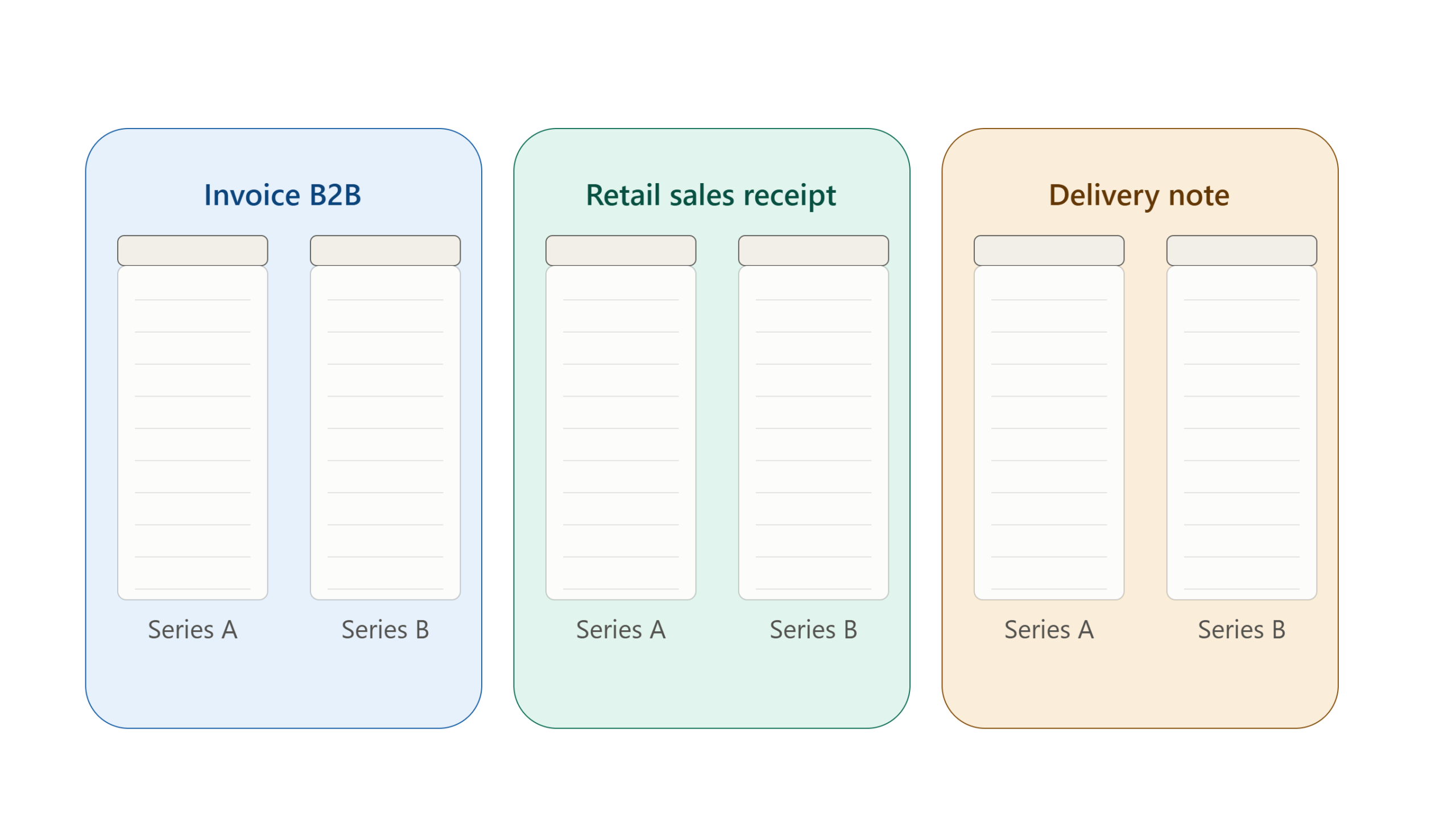
- If you issue an invoice from Invoice B2B -> Series A, the system will generate a number like INV-A-001.
- If you issue the next invoice from Invoice B2B -> Series B, the system will look at that specific stack and generate a number like INV-B-001.
- Selling to a retail customer? You must switch to a different drawer entirely: Retail Sales Receipt -> Series A.
Create Journal
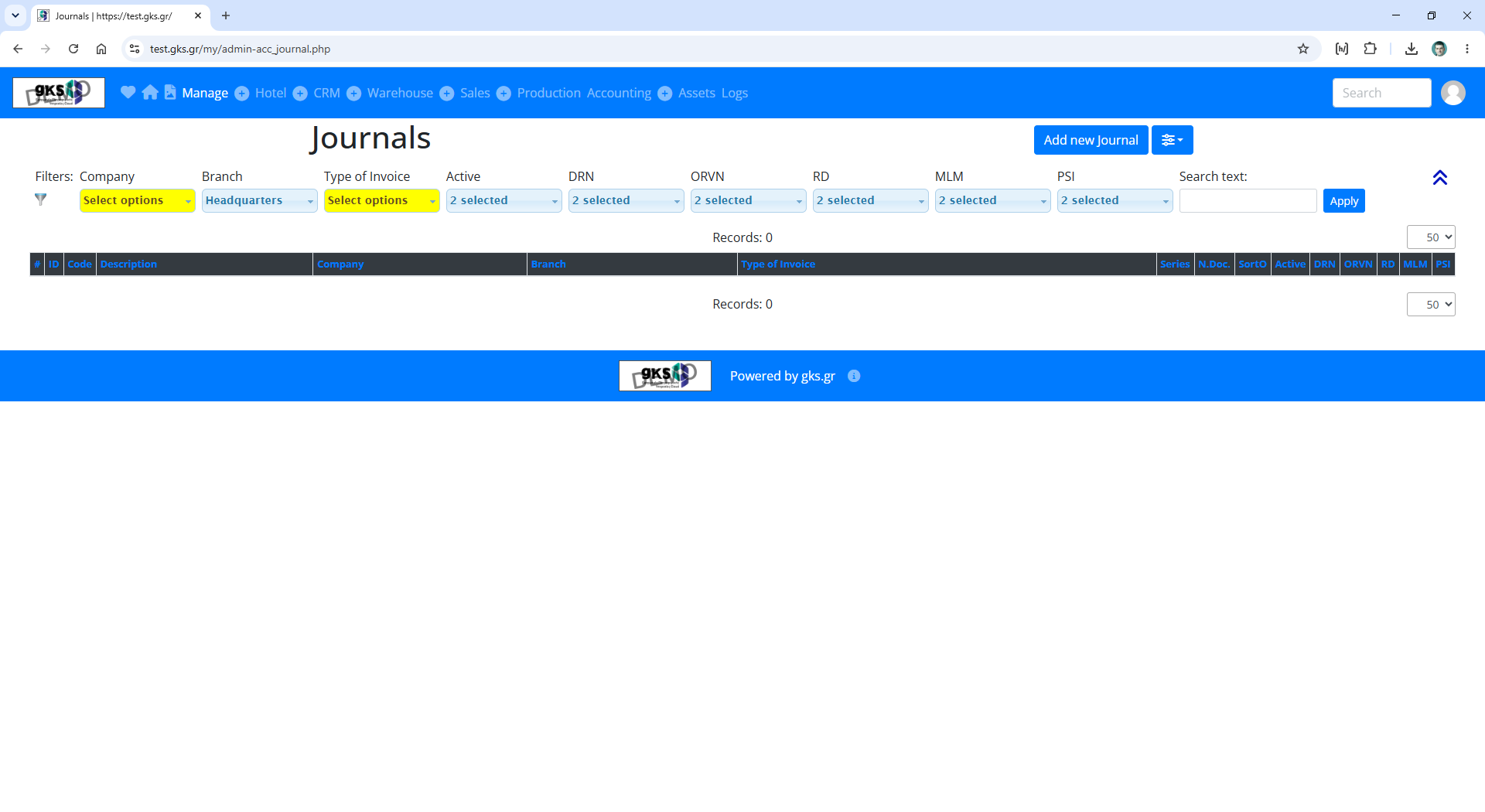
To create a journal, for example the Invoice B2B, go to Manage / Journals from the menu.
URL: /my/admin-acc_journal.php
Click to Add new Journal button
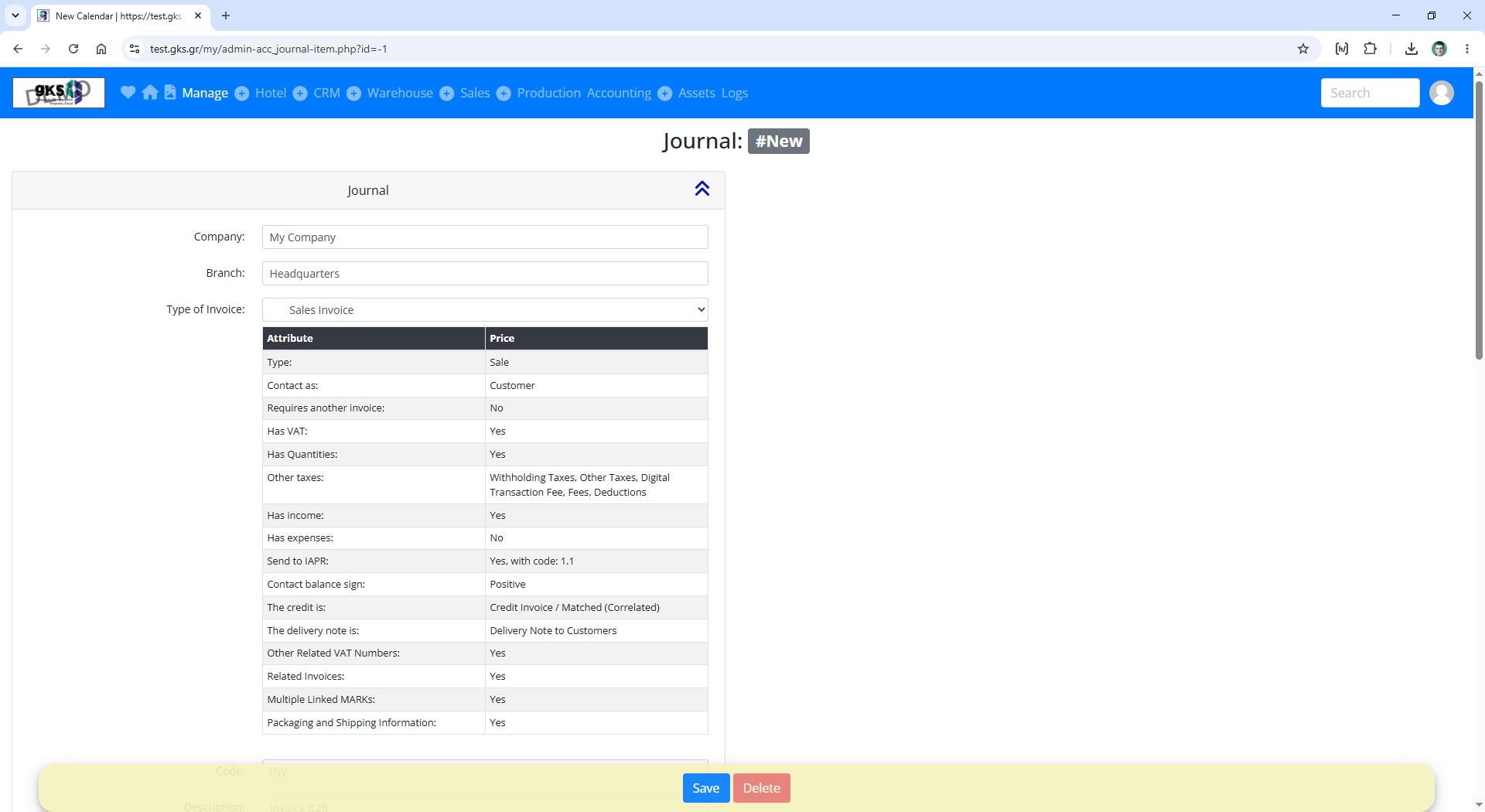
URL: /my/admin-acc_journal-item.php?id=-1
At Company filed input *** to saw all companies. Select your company.
The field Branch will fill automaticaly with the value Ηeadquarters
At Type of Invoice select Sales Invoice
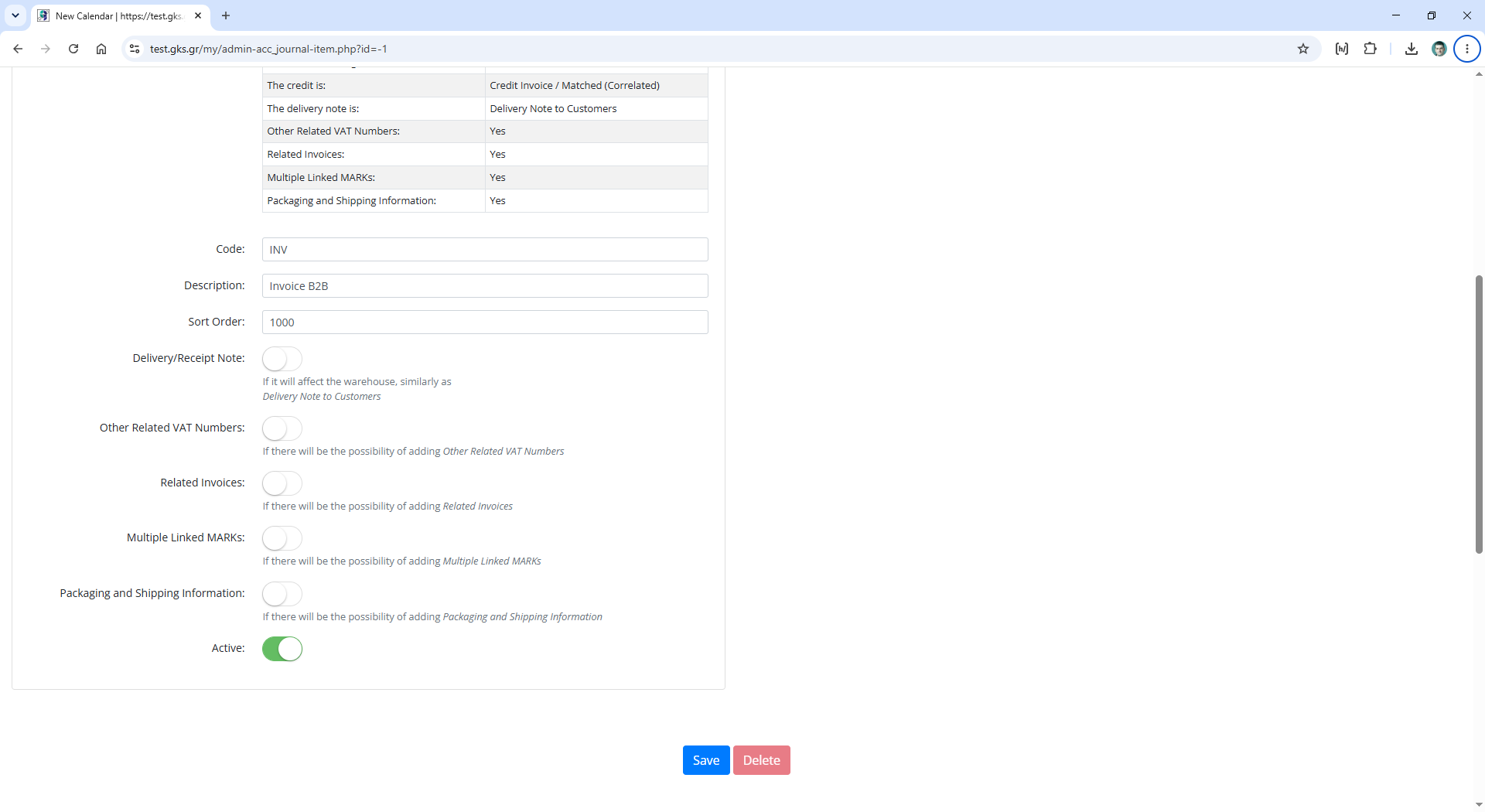
At Code type someting short like INV
At Description type the name of journal for example Invoice B2B
The Active fiield must be enabled.
Save the changes by cliking at Save button.
Create Series
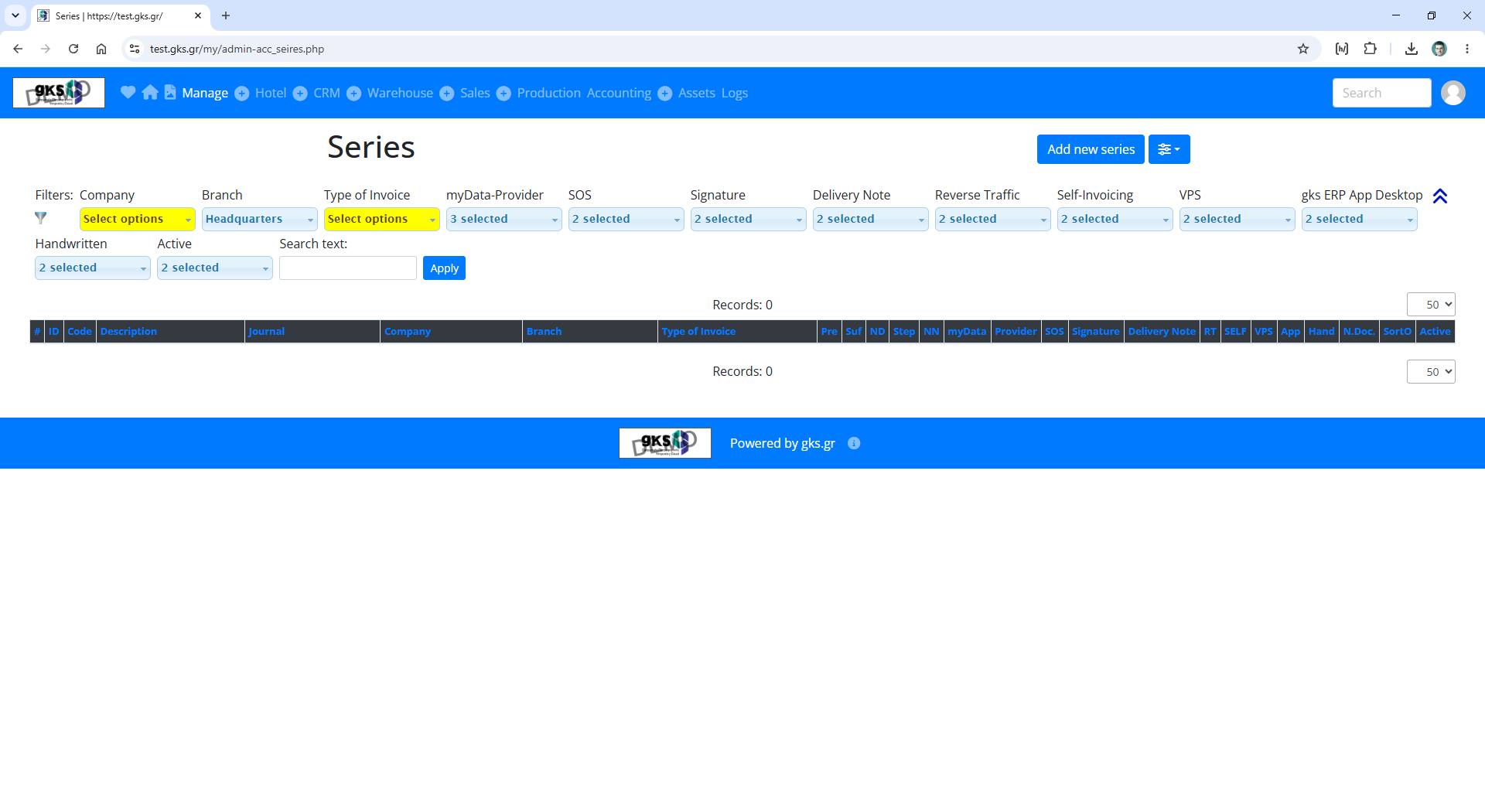
To create a series, for example A for journal Invoice B2B, go to Manage / Series from the menu.
Click to Add new series button
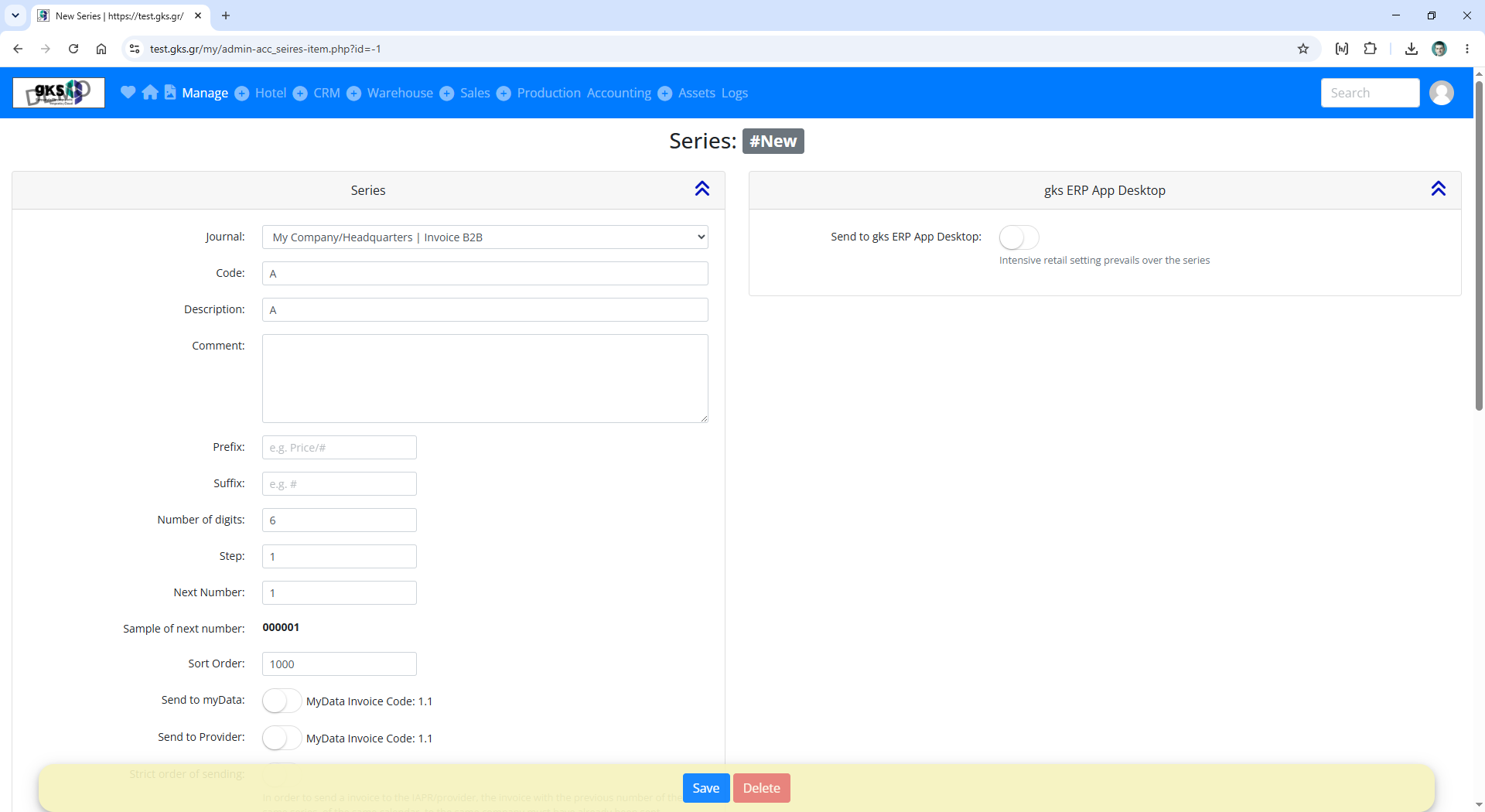
URL: /my/admin-acc_seires-item.php?id=-1
At Journal filed select Invoice B2B.
At Code type someting short like A
At Description type the name of series example A
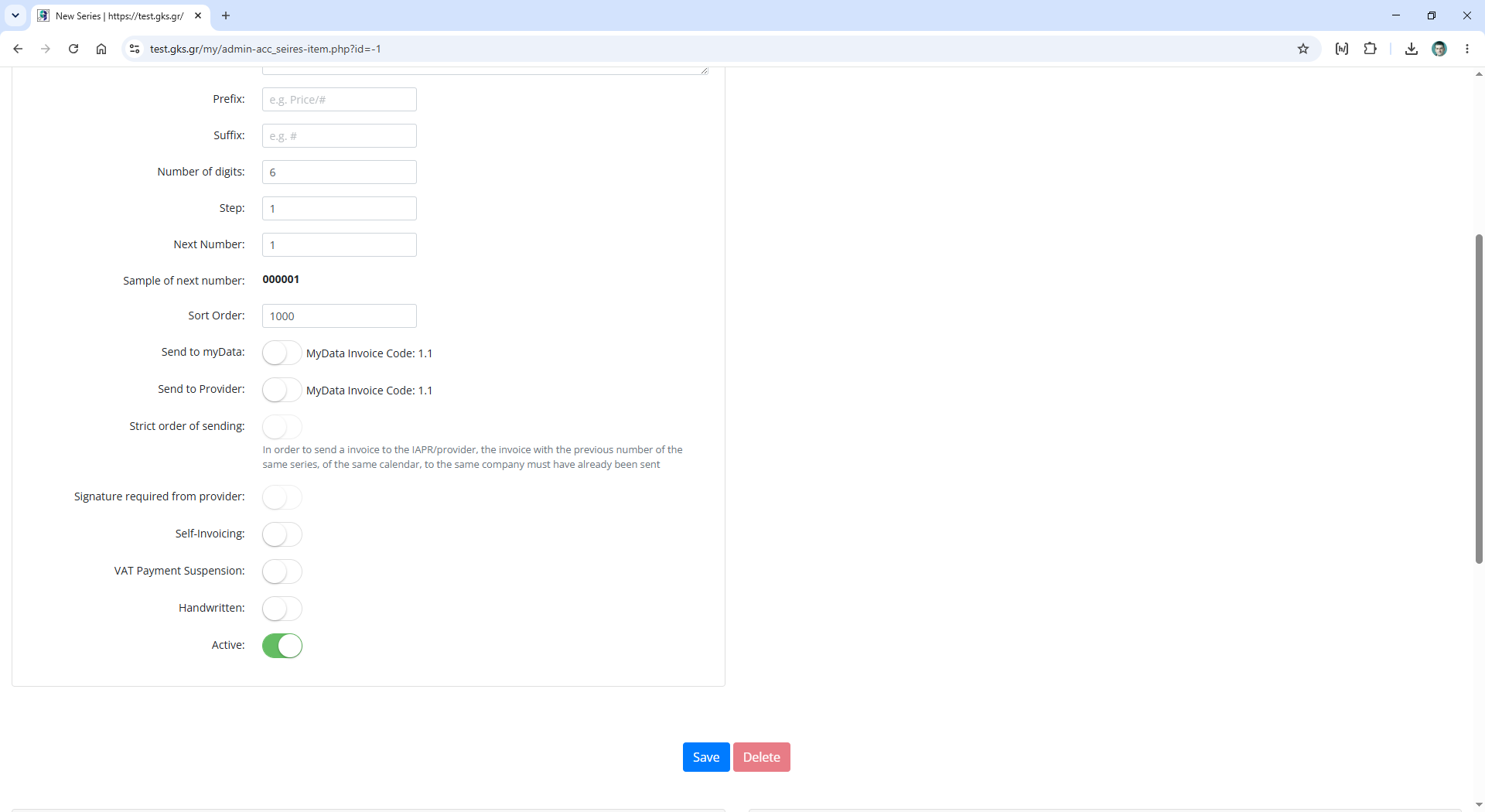
The Active fiield must be enabled.
Save the changes by cliking at Save button.