gks ERP can send emails.
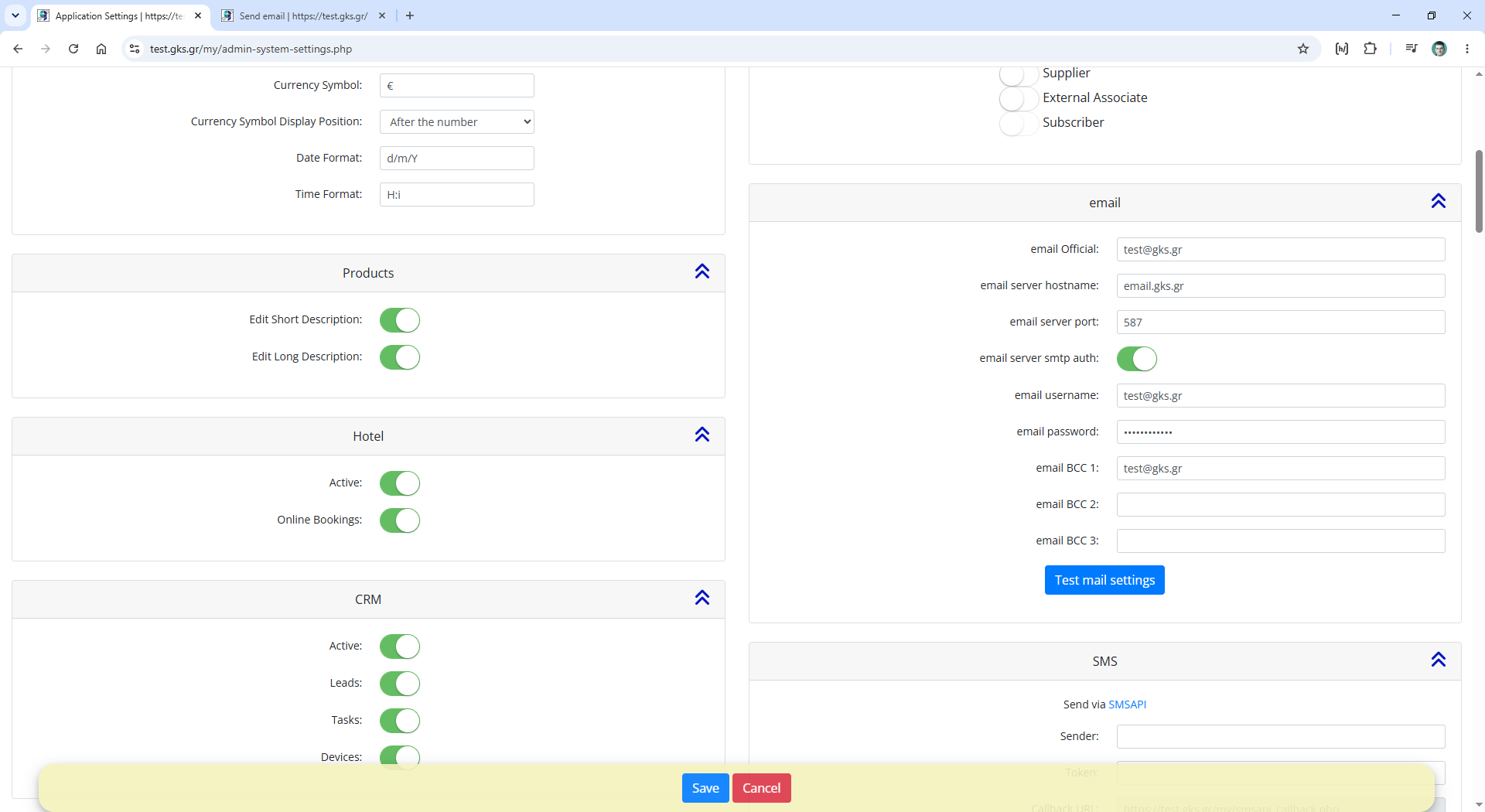
To configure the settings for outgoing mail, go to the Manage / Settings / Application Settings
URL: /my/admin-system-settings.php
Scroll down to section email.
Fill in the fields for your SMTP server:
- Official email – your official email address, e.g., info@mydomain.com
- Email server hostname – the name of your mail SMTP server, e.g., email.mydomain.com
- Email server port – the connection port, depending on the connection type. Usually 465 for SSL, 587 for STARTTLS, or 25 without login credentials
- Email Server SMTP Auth – If login credentials are required, this is usually enabled
- Email Username – Your email username, usually your email address – e.g., info@mydomain.com
- email password – the email password
- email BCC 1,2,3 – Set these if you want gks ERP to send emails to these addresses via BCC when sending an email, e.g., admin@mydomain.com
Save the changes by cliking at Save button.
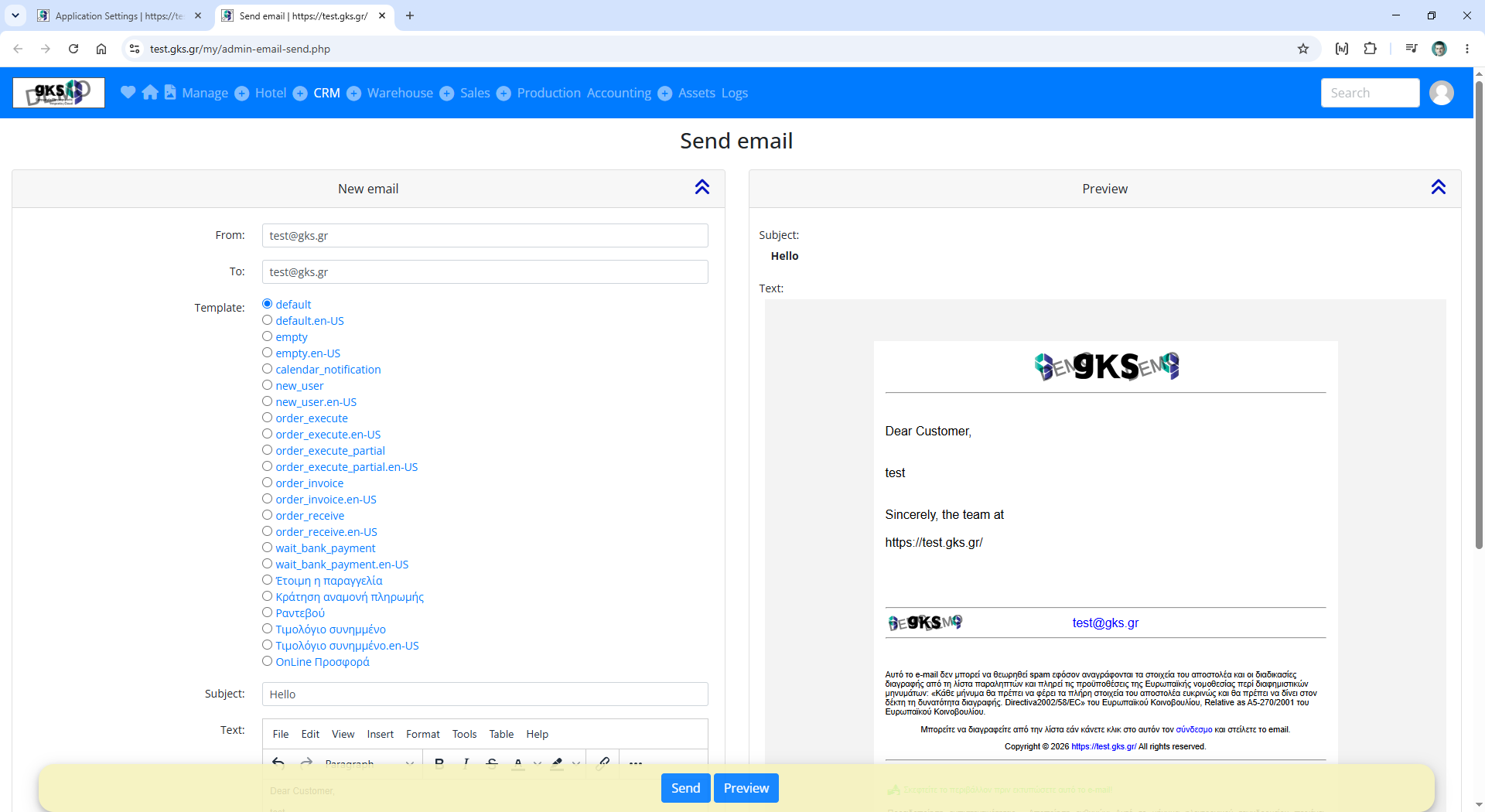
Click the Test mail settings button to go to the email submission page and send an email to yourself to check if the settings are correct
Enter your email address in the field To and send the email.
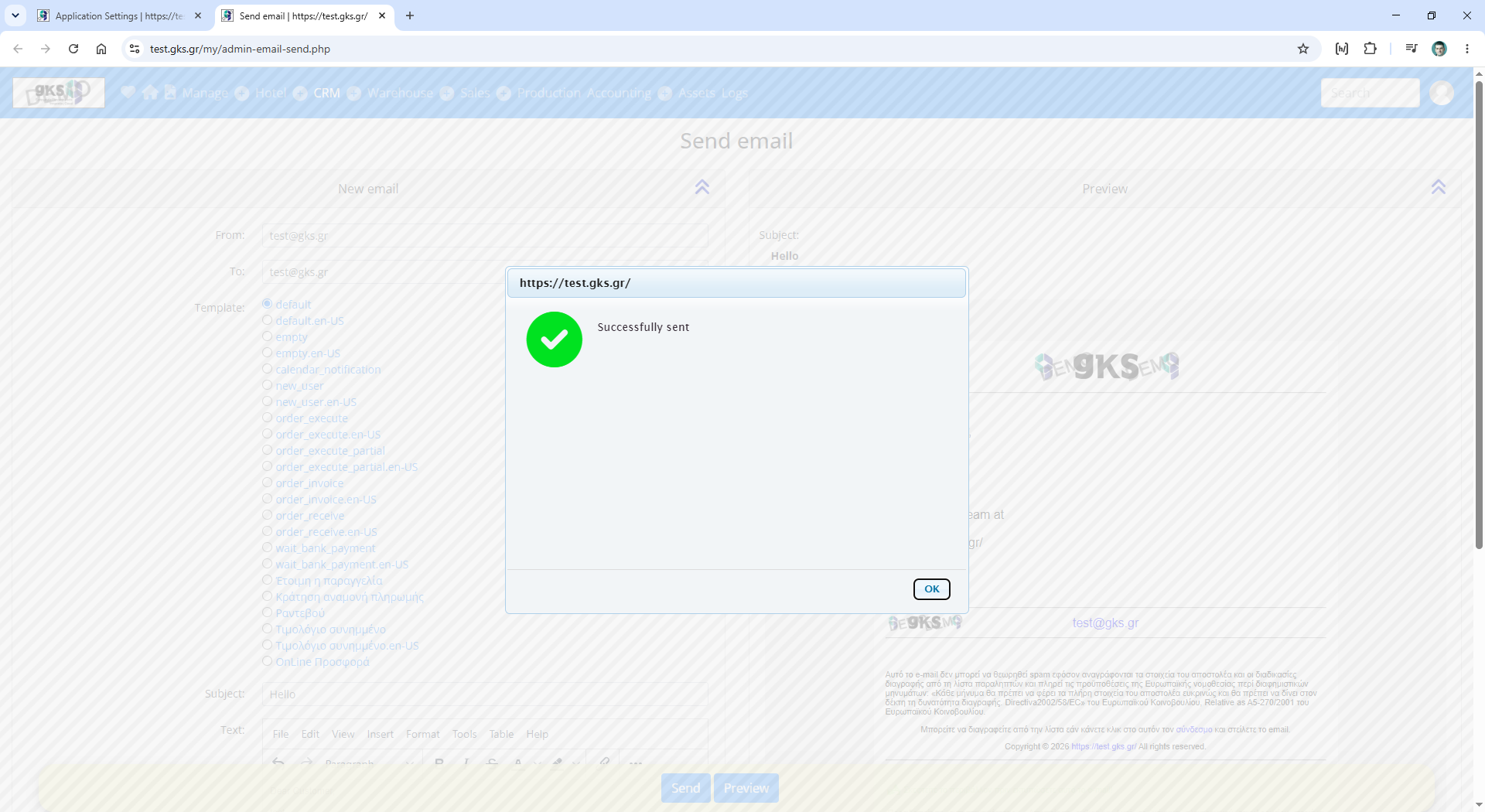
If the email is sent successfully, a message will appear.
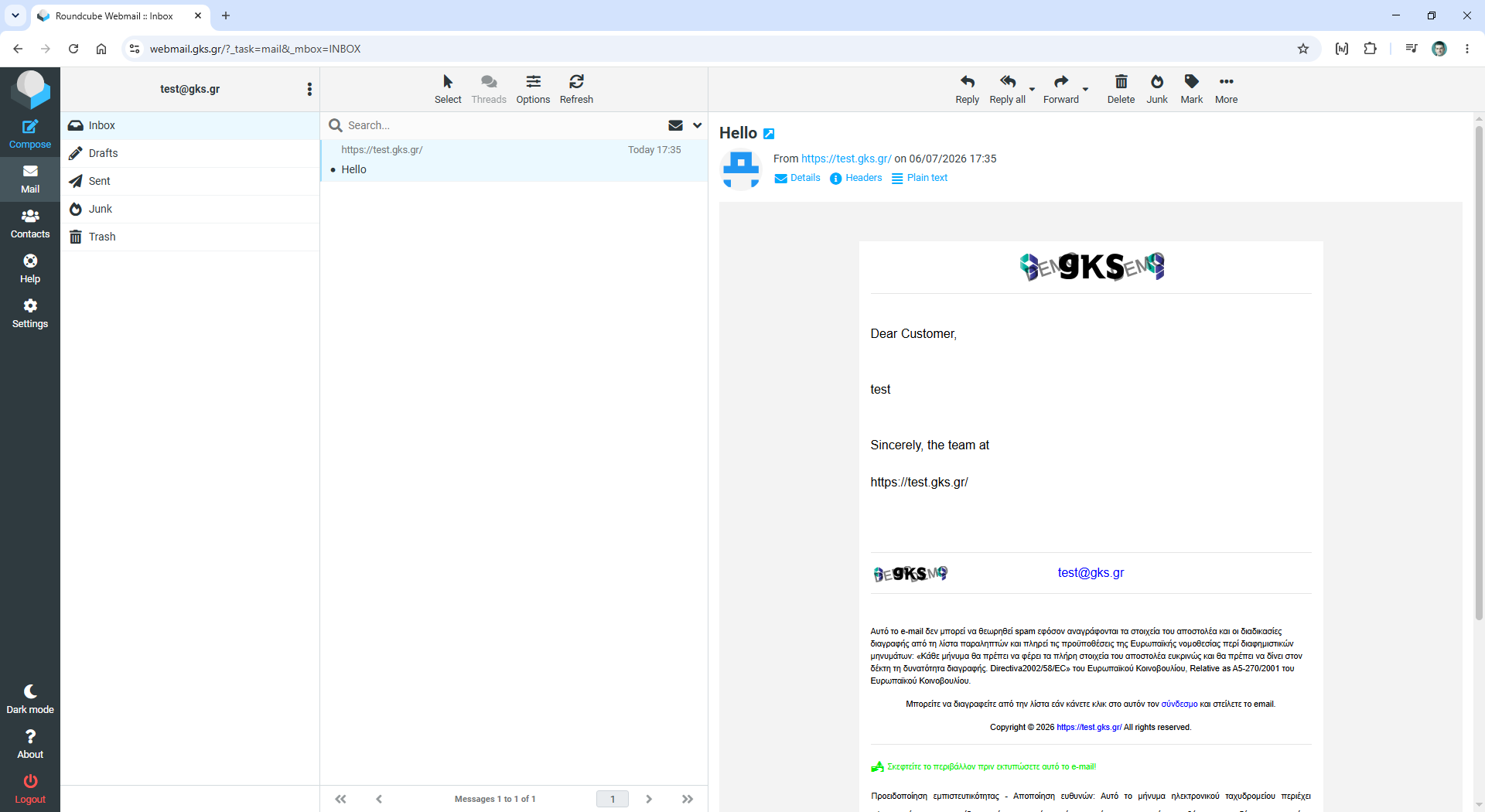
Check your inbox for an email from gks ERP.
You should have received it. Be sure to check your spam folder as well.